Most people don’t struggle to create a workbook in Canva. They struggle to finish one.
Business owners, coaches, and creators I’ve worked with want a workbook for the same reasons: to grow their email list, support a course, or create a coaching guide that stops them from repeating the same explanations over and over, while still looking polished and on brand.
And almost all of them start the same way;
Open Canva, expect it to take a couple of hours, only to still be stuck on page two.
I know this because…
I run another brand, outside my Canva templates business. I’ve created and sold dozens of digital workbooks, planners, and self-help journals using Canva.
Several of the workbooks I’ve created with this system have sold consistently, without requiring constant redesigns or updates.
Canva makes designing look simple,
However, when you’re building a full workbook, the decisions add up fast. You get to decide the layouts, fonts, spacing, flow, and how your workbook is perceived.
That’s why creating a workbook that actually works starts long before you open Canva.
In this post, I’ll walk you through the exact system I use to design workbooks in Canva that look cohesive, feel high-end, and are built to sell, even if you have zero design experience.
I’ll also show you when using ready-made Canva workbook templates makes sense, so you can launch in hours rather than spend days second-guessing every page.
What Is A Workbook? (And Why Canva Works Well For It)
A workbook is an interactive resource. It’s a tool that helps your audience take action. Think prompts, exercises, and space to reflect or plan. Unlike a passive ebook, a good workbook guides someone from “I get it” to “I’m doing it.”
Your workbook could be digitally fillable. In this case, you’ll offer it as an editable PDF or as a printable document.
It includes prompts, exercises, checklists, questions, and, most importantly, spaces to write, so readers can apply what they’re learning in real time.
The main difference between an ebook and a workbook is that an ebook and guides teaches you how to do something, while a workbook guides you to do it.
Example planners, journals, action guides, checklists, step-by-step guides, and fill-in-the-blank.
The best workbooks are clear, visually engaging, and easy to follow, and not overwhelming. And this is why Canva works so well for creating workbooks.
So, why Canva?
Because you don’t need to be a designer. Canva makes it drag-and-drop simple to create beautiful, usable pages that reflect your brand. It’s fast, intuitive, and doesn’t require Adobe-level skills.
You can also export your workbook as a polished PDF that your audience can actually use.
Plus, if creating a workbook from scratch scares you. You can skip the whole process and use a premade Canva workbook template to get your workbook done in a few hours.
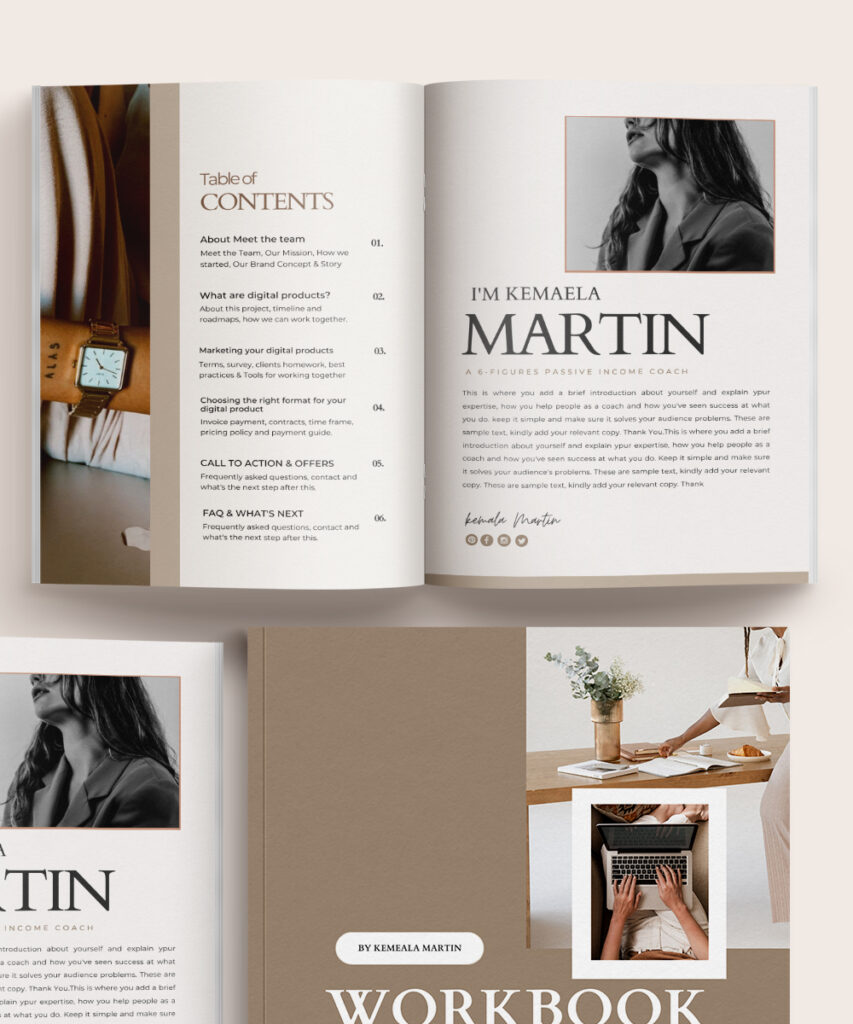
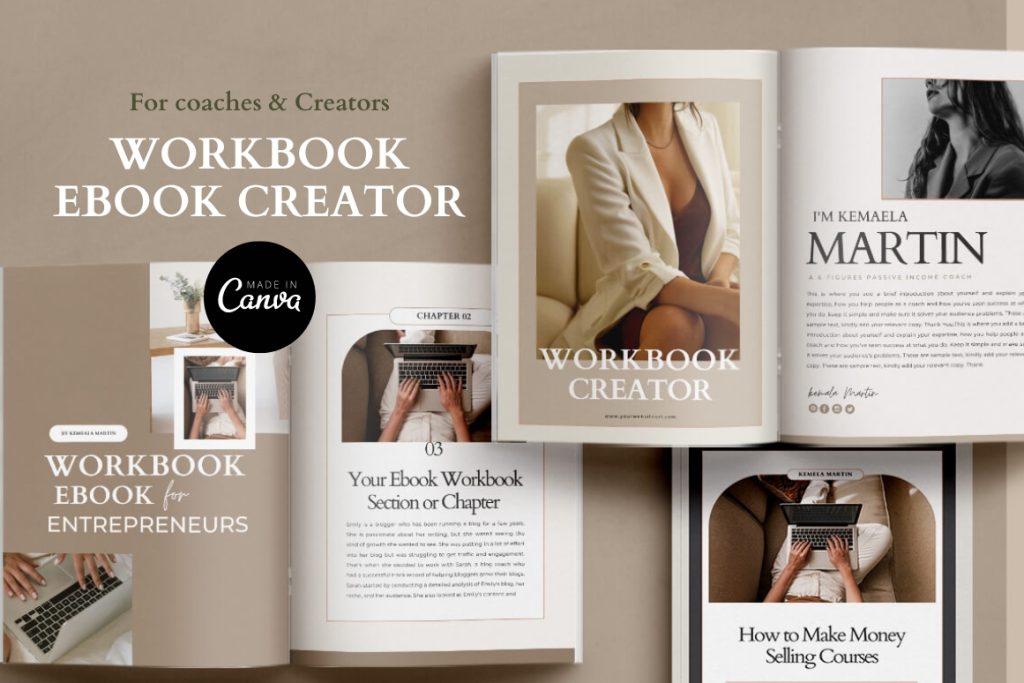
Strategic Workbook/Ebook Canva Templates Collection
Ready to create professional workbooks and ebooks without staring at a blank page?
Fully editable Canva templates to help you structure lead magnets, workbooks, and ebooks, stay on brand, and finish faster without overthinking the design.
Or, create your workbook now and have everything ready for your next digital product too. $252 worth of pretty templates for $97? Yes, please. →
What You Need Before Creating A Workbook In Canva
For whatever reason, you decide to create a workbook, whether you’re selling it as a journal, coaching material, planner, or even offering it as a freebie or content upgrade. Here are the things to consider before creating a workbook.
Decide On A Clear Outcome OF The Workbook
The first thing you want to do is to decide on the clear outcome of your workbook.
More like setting a clear expectation for both you and your users.
Ask yourself:
- What value am I offering?
- How do I want someone to use this workbook?
- What would they walk away with after completing it?
- Who is this workbook for?
- And how would this person I am creating this workbook for perceive it?
- How would they use it?
Basically, this is about knowing who you’re creating for, why, the transformations, a clear outcome, and what tools this person is more inclined to use.
Would your audience prefer a printable to write-by-hand workbook or a digitally fillable workbook?
Once you answer these burning questions, it ultimately helps you decide on the layout, number of pages, the structure, and the elements. This is the first step to create a workbook that wows your audience every time and skip.
Now, this is a pro hack I use every time I build a new product.
Having this clarity up front, even if your idea evolves (as it usually does), gives you a filter for every design decision. It even helps you choose the right Canva template, should you decide on using a professional Canva template instead of starting from scratch.
2. Decide On The Content Outline
Draft your content outline and workbook structure. In most cases, you’ll make tweaks and changes to your prewritten content outline.
I’d start by writing out the exact outcome and user transformation, which is why you should never skip step one.
The next logical step is to list all the elements, pages, and structures that must be included in your workbook to achieve that outcome.
Think about:
- Elements like checklists
- Whether your readers need more lines or fewer lines to answer a given prompt
- Modules, sections, themes, exercises, prompts, journaling pages
- Number of pages (will your reader appreciate fewer or more pages?)
This is where you map out how you envision your workbook.
For instance, while creating one of my best-selling products for my other business.
I knew I didn’t want it to overwhelm my readers, like hundreds of journals out there with “useless” pages that do nothing but overwhelm users.
Because I had this goal upfront, it guided the prompts and pages I included while maintaining value. Deciding what to include in your workbook helps speed up the design process in Canva.
3. Do You Want Your Workbook To be Printable or Digitally Fillable?
Would it be a printable workbook or a fillable interactive PDF workbook?
d46e6c
Think about how your audience is most likely to use it.
Are they more of the pen-and-paper type, like me, or do they prefer using their devices (AKA digital planning)?
This one decision will influence your layout, font size, spacing, and even the tools you use to export.
And if you’re stuck on which format to use, you can ask them. In situations where you can’t, you can create variations of your workbook.
Want to make your workbook digitally fillable with interactive pages? I wrote a guide on how to create an interactive PDF in Canva, so your audience can fill out your workbook on mobile devices.
4. Are You Using Canva Free or Canva Pro?
Some templates, especially ones with premium fonts or images, and elements require Canva Pro.
If you’re using a free account, double-check that the template you choose doesn’t rely on paid elements, or be ready to swap them out.
5. Add Your Brand Kit
Before you start designing your workbook, set up your brand kit in Canva. Having your brand kit set up in Canva is handy, saves time, and speeds up the process of creating a workbook in Canva.
Go to the “Canva brand kit” section and upload your fonts, images, brand colors (hex codes), logos, and visual elements.
Use images with a similar vibe and color palette that match your brand colors. If you want your workbook to look professional and high-end. This helps your design look cohesive and professional.
That said, these are what you need before designing your workbook in Canva.
Once you’ve got your structure and goals in place, it’s time to actually build the thing.
PS: Here’s a full tutorial on setting up your brand kit in Canva.

How to Create a Workbook in Canva (Step-by-Step)
1. Decide on The Format (US Letter or A4)
Start by selecting your page size: US Letter or A4.
Most workbooks use one of these two formats, depending on where the audience is located. If your workbook is digitally fillable, the format matters less.
But if it’s meant to be printed, choosing the right size upfront avoids awkward margins and scaling issues later.
Personally, I often duplicate my workbooks in both A4 and US Letter, so anyone can print them easily, regardless of their location.
2. Start From Scratch or Use A Premade Canva Templates
Now we’re down to actually designing your workbook. You can start with a blank page.
In Canva, click Create → Docs, then search for A4, or choose Custom size and input your dimensions (A4: 21 × 29.7 cm or US Letter: 8.5 × 11 in) to start from scratch.
Before now, searching “workbook” worked just fine, but with Canva’s constant changes, A4 now shows up as the easiest default option under Docs, so using a custom size works just as well if you want full control over your page size.
While starting from scratch gives you full control.
This is the fastest way to abandon your workbook or procrastinate for weeks, especially if you’re not a professional designer.
I definitely don’t recommend starting from scratch. Instead, start with a premade workbook template.
Most Canva-native templates are super generic and often require tons of tweaking.
That’s why I created my own pro-grade templates that are built for flow and function, and easy to customize, so you can plug in your content and go.
For example:
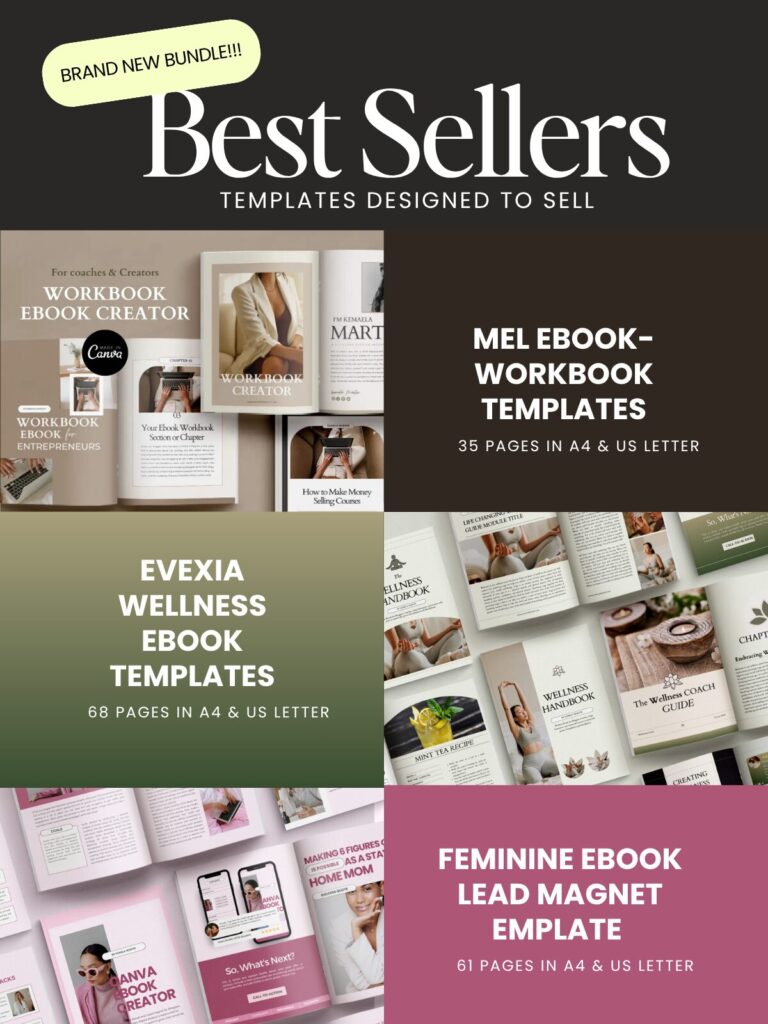
- Use the Mel ebook-workbook templates if you want a hybrid workbook that’s flexible for different content types—it’s universal and fully editable.
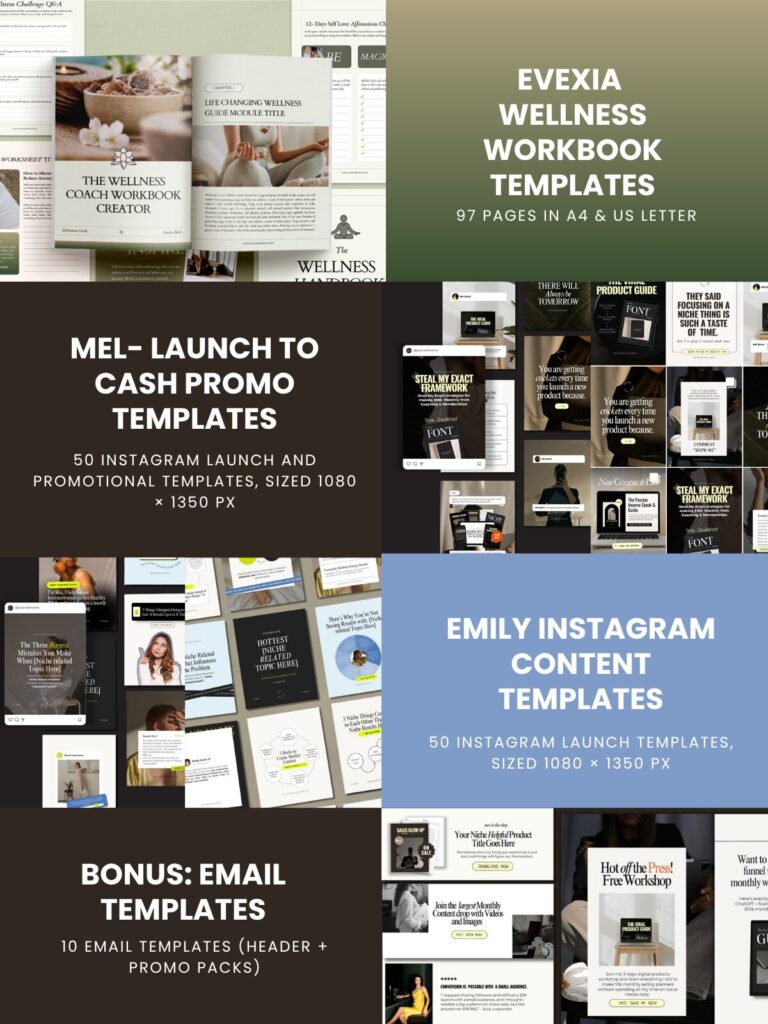
- Use Evexia wellness workbook templates if you’re a wellness creator, coach, healer, or educator.
They’re among my best-selling workbook templates and will help you finish, not stall.
3. Design the Interactive Pages
The main difference between a workbook and an ebook or guide is the interactive pages.
This is where your reader actually does the work. Think reflection pages, trackers, questionnaires, checklists, visualization pages, and even tools like a wheel of life.
Interactive pages give your users space to respond to prompts, take notes, and apply what they’re learning in real time. This is the core of a workbook.
If you’re using a premade Canva workbook template, many of these pages are already done for you.
But if you’re designing from scratch, you’ll need to create these interactive elements yourself inside Canva.
Sometimes that means searching for elements and dragging them into your design. Other times, it’s about using simple Canva tools to build what you need.
Let me show you how I do it.
Creating Writing Space Using Lines
One of the simplest ways to create writing space in a workbook, especially for printable versions, is by using lines.
Here’s how to do it cleanly in Canva:
- Press “L” on your keyboard, or go to the Elements tab and add a basic line
- Drag the edges to your desired length
- Hold down the Shift key while resizing so the line stays straight
- Duplicate the line and place it horizontally
- Adjust the spacing once, then keep duplicating until you have enough writing space
A small hack I use all the time: Highlight all the lines, right-click, and select Tidy up. Canva automatically spaces everything evenly, saving time and keeping your pages clean and consistent.
Highlight the lines > right click> select Tidy Up > space evenly.

When to Use Shapes Instead of Lines
Lines work great for journaling and reflection pages, but for some workbook sections, shapes work better.
Use simple rectangles or boxes when you’re creating:
- Checklists
- Checkbox
- Question-and-answer sections
- Trackers or logs
You can use rectangles, set them to no fill (outline only), or use a very light background color, as shown in the image below.
Doing this helps you leave enough white space and generally makes your workbook look better.
Note that if a page looks beautiful but feels awkward or cramped to write on, it’s not doing its job. When designing interactive pages, ask yourself:
- Is there enough space for real answers?
- Would this feel comfortable to fill out?
- Is anything here making the page harder to use?
The best workbooks aren’t the most decorative ones. They’re the ones people actually finish. Your goal is to create a workbook that people actually finish.
One that guides them to achieve the transformation you’re offering.
Now that you’re done making your interactive pages, the next step is to brand your workbook so that it feels and looks like it’s part of your ecosystem.
Your branding should enhance the workbook, without distracting your users from achieving the required transformation.
3. Add Your Branding Without Overdesigning
By now, you should already have your brand kit set up in Canva.
If you’re using Canva Pro, you can upload your fonts, brand colors, and logos.
However, you can’t upload custom fonts if you use the free version of Canva. The walkaround is to search for similar fonts in Canva and use those instead.
The goal here isn’t to maintain consistency.
Use the same fonts, font sizes, weights, colors, and elements across your workbook. This is one of the easiest ways to make your workbook look professional without trying too hard.
For example, if your page titles are size 60, keep them all the same size. If your subheadings are size 30, keep them consistent. If you decide to italicize your page headings, do it everywhere, not just on one page.
These small choices are what make a workbook feel intentional.
Another hack that helps is using images that have a similar feel or tone to your brand colors.
When your images, fonts, and colors work together, the entire workbook looks more cohesive, whether you’re designing from scratch or using a premade Canva workbook template.
Now, there’s one small mistake I see people make all the time when branding a workbook in Canva.
Using bold brand colors as the background color for every page.
I’ve done this before, and it almost always causes problems.
Bold background colors make text harder to read. Making the workbook pages uncomfortable to write on, especially for prompts and reflection pages.
This doesn’t mean you should avoid your brand colors completely. It means they work better as accents. So, use them to add character to your design.
Use bold colors on cover pages, section dividers, quotes, or callout pages, and decorative elements
For core workbook pages, stick to lighter or neutral backgrounds that are easy on the eyes.
Here’s a simple way to think about it.
Let’s assume you’re creating a workbook in Canva as an add-on for a course about women making money.
And one of your brand colors is red; using red as the background for writing pages would be a nightmare.
But, adding an image of a woman wearing a red blazer, or using red sparingly for lines or accents, still keeps the workbook on brand without hurting usability.
When branding supports the content instead of competing with it, your workbook feels cleaner, more professional, and much easier to use.
This is something I learned after overdesigning some of my early Canva workbooks.
Simpler layouts consistently worked better, and neutral colors as main colors and bold ones as accents quickly level up your workbook designs.
4. Make Your Workbook Fillable (Optional)
Should you make your workbook fillable?
Whether your workbook is digitally fillable or printable really comes down to who you’re creating it for.
This decision matters even more if you’re creating a coaching workbook or a journal, especially one with more than 30 pages.
I always think about the end user when creating a new product. And this entire decision comes back to knowing your audience on a deeper level.
Is your audience more digital-first—someone who enjoys using an iPad, tablet, or laptop to fill things out? Or are they more likely to print the workbook and write by hand?
There’s no better option here. One isn’t superior to the other.
Printable workbooks often work better for reflection, journaling, and longer prompts. Fillable workbooks tend to work well for structured exercises, short responses, or people who prefer staying fully digital.
If you’re unsure which direction to go, a printable is usually the safest starting point. You can always offer a fillable version later once you understand how your audience is actually using the workbook.
5. Export Your Workbook in Canva Correctly
After creating your workbook in Canva, the two export options you’ll use are PDF Standard and PDF Print.
So, how do you know which one to use?
PDF Standard works best if your workbook is meant for digital use. This is ideal for digital journals or workbooks that include clickable links or lead to other resources.
PDF Print, as the name suggests, is for printable workbooks.
One important thing to note here: when you export as PDF Print, any links in your workbook won’t work. Once it’s exported, the file is treated purely as a printable document.
This matters when you’re deciding how your workbook will be used.
You might think it makes sense to export everything as a digital file. Users can choose to print or fill it in digitally. But that usually causes problems.
Users often run into formatting or printing issues when they try to print Canva designs that weren’t exported properly.
That’s why any printable workbook you create in Canva should be exported as a flattened PDF.
Flattening your PDF helps prevent printing errors. And keeps your pages looking the way you designed them. If your workbook is meant to be printed, this step isn’t optional.
So the rule is simple:
- Digital use → PDF Standard
- Printable workbook → PDF Print + flattened
Getting this right saves you a lot of back-and-forth later. It also gives your users a better experience from the start.

Common Workbook Design Mistakes (and How to Avoid Them)
1. Creating Too Many Pages
One of the most common mistakes I see is adding too many irrelevant pages to make a workbook look “valuable.”
I’ll tell you this for free.
The number of pages of your workbook has little to do with quality or perceived value, and it definitely doesn’t make a workbook more professional.
In most cases, too many pages make a workbook feel overwhelming and harder to finish, often leading users to walk away without any real transformation.
When it comes to assessments and interactive workbooks, less is more, as long as the workbook actually delivers value. I’ve tested this repeatedly across my own digital products, both from a creator and a user perspective. Stuffing a workbook with unnecessary pages almost always backfires.
This is also why I receive reviews like this:
“This journal is very thorough and helps guide you to the goals that suit where you are right now. It can be used to build clarity in specific areas or for a full life reset. I love that there’s no set time frame and that it can be reused whenever you need a reset.”
That review didn’t come from a 70-page digital product. It came from a 12-page planner/journal I created, and it’s a hit.
A strong workbook focuses only on what the reader actually needs to get the result you’re promising. If a page doesn’t support that outcome, it doesn’t need to be there.
2. No Clear Outcome
Another mistake I often see is workbooks without a clear purpose.
They might look good, but once you open them, it’s not obvious what the workbook is meant to help you achieve.
This usually happens when you fail to define the outcome and expected transformation before designing your workbook in Canva.
Every section, prompt, and exercise should point to a single clear result. Without that, the workbook feels scattered.
3. Overdesigned Pages
It’s easy to overdesign in Canva.
Using many fonts, colors, graphics, or decorative elements can make a workbook harder to use and more distracting than helpful.
Stick to 2–3 fonts, usually, one heading and body font, then a decorative font.
Simple layouts with enough white space are easier to write in and easier to complete.
Your workbook doesn’t need to look “busy” to look professional. And most importantly, avoid the bold color pitfall.
4. Not Enough Writing Space
This is a big one.
I see a lot of workbooks with beautiful layouts, but very little space to actually write. Short lines and cramped boxes make the workbook frustrating to use.
When in doubt, always give more space than you think is necessary.
5. Not Having Clear Instructions
Another mistake I see often is assuming the reader knows what to do.
If a prompt or exercise isn’t immediately obvious, a short instruction makes a big difference. One clear sentence is usually enough to guide someone through the page.
When instructions are clear, people move through your workbook with less friction and are more likely to finish it.
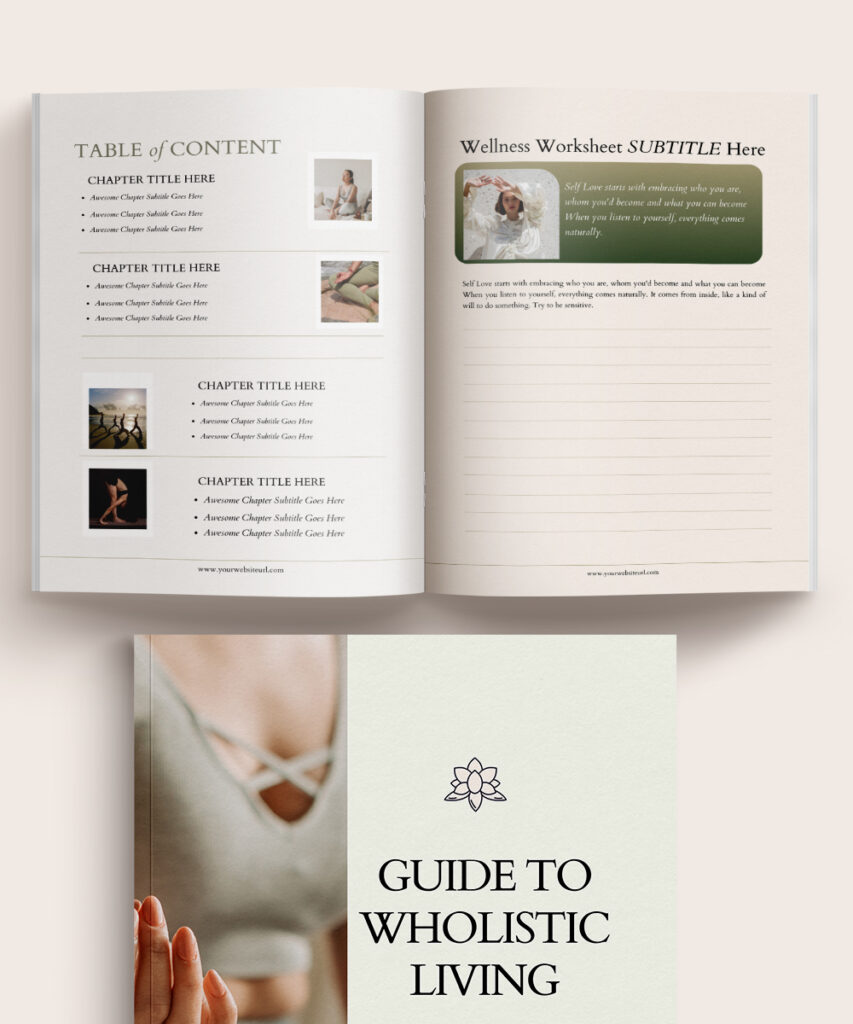
Strategic Workbook/Ebook Canva Templates Collection
Ready to create professional workbooks and ebooks without staring at a blank page?
Fully editable Canva templates to help you structure lead magnets, workbooks, and ebooks, stay on brand, and finish faster without overthinking the design.
Should You Use a Canva Workbook Template?
Short answer: yes, in most cases.
If you enjoy designing and have the time to start from scratch, you can build a workbook in Canva on your own.
But for most people, that’s where things slow down or never get finished.
Using a Canva workbook template removes the guesswork around layout, spacing, and structure, so you can focus on the content instead of overthinking the design.
That said, not all Canva templates are created equally.
The generic workbook templates you’ll find inside Canva look nice but aren’t designed for real use. They often need so much tweaking that you might as well have started from scratch.
A good workbook template should be easy to customize, leave enough space to write, and guide the reader through the workbook naturally.
Before I choose a workbook template, I usually ask myself two questions.
First: Can I use this template without moving things around too much or wasting time fixing layouts?
The whole point of using a premade Canva workbook template is to save time while still creating something that looks professional.
Second: Does this template already include most of the pages I need?
No template will ever be a perfect fit unless it’s custom-made, but it should cover at least 80% of your content outline.
For example, in my shop, Evexia is a wellness-focused Canva workbook template designed for wellness creators. It includes wellness-style pages and elements, and you can tell at a glance who it’s for.
On the other hand, Mel is a multipurpose Canva workbook template that’s easy to customize and works across different industries and brands.
Both are bestsellers for a reason. But they’re not interchangeable.
If you’re a passive income coach, choosing a wellness-focused template like Evexia would slow you down because it doesn’t align with your brand and would require unnecessary editing.
In that case, a flexible template like Mel makes more sense.
The right workbook template should;
- Cut your creation time in half
- Keep your workbook visually consistent and on-brand
- Help you focus on what actually matters (client transformation and selling).
I use templates when I’m launching something quickly (like a challenge, freebies, journals). Or when I can’t be bothered designing from scratch again.
Now, you know how to make a workbook in Canva that people will actually use and finish.
Ready to Launch Your Workbook?
Now you know how to create your workbook in Canva.
But you don’t have to spend hours figuring out layouts, fonts, spacing, and what goes where. I’ve already done that part for you.
My Canva Digital Product Templates Bundle includes my best-selling ebook and workbook templates, with 261 professionally designed pages across 6 collections, plus 100 Instagram templates and bonus email templates to help you promote what you create.
I designed them for easy use, so you can edit and customize everything to fit your brand.
Plus, they are pretty. In fact, they have to be, because I created them.
Use what you need for your workbook now, and when your next ebook, lead magnet, guide, or digital product idea comes along, you already have the templates for that too.
You’re getting $252 worth of my Canva templates for $97.
So instead of designing every page from scratch, you can get to the fun part: customizing your workbook, finishing it, and putting it out into the world.
Get The $97 Canva Templates Bundle →
Start with the outcome you want your audience to achieve if you’re stuck deciding what type of workbook to create.
Then work backward to design the prompts and exercises that get them there.