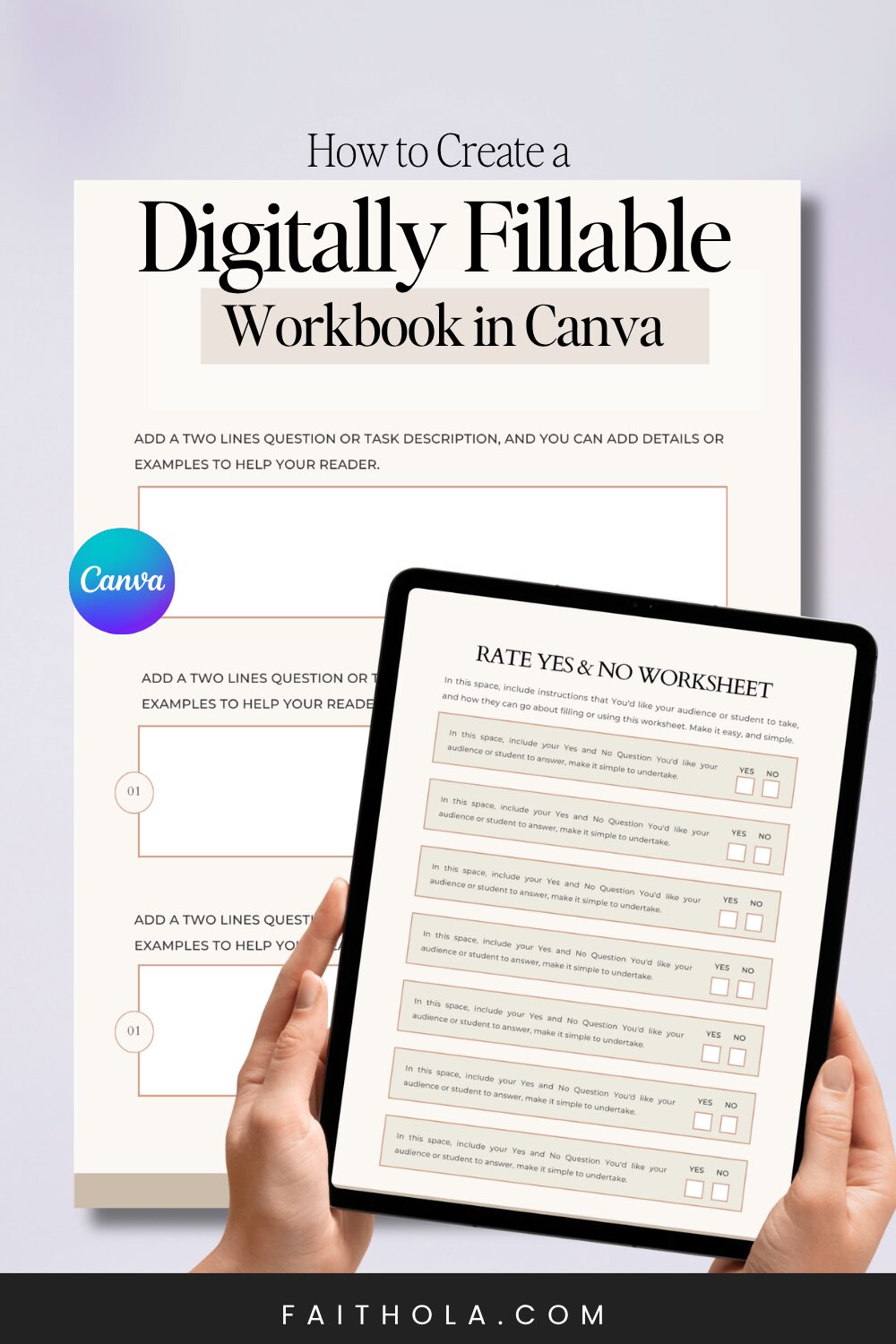
As someone who makes money selling not only workbook Canva templates, but also the actual interactive worksheets, journals, and guided workbooks, I can tell you this:
Creating a digitally fillable workbook in Canva is so much fun.
Well technically…
Canva itself doesn’t make the workbook interactive. But turning a Canva workbook into a fillable PDF only takes a few extra minutes.
What I love about digital workbooks is that they give people options. They can print them if they want, or fill them out on their phone, tablet, or computer.
And if you’re creating resources that people need to complete, making things easier for them is rarely a bad idea.
We’ve all bought products we dumped in the “useless folder” because they became a chore instead of a solution.
Maybe you’re creating a workbook for your online course, a freebie to grow your email list, or a digital product you plan to sell, such as guided journals, digital planners, or interactive PDFs.
The easier it is for someone to use your workbook, the more likely they are to complete it.
In this post, I’ll show you exactly how I do it using Canva and Docfly or PDF Escape, including how to add fillable fields and save your workbook as an interactive PDF.
Note: This post may contain affiliate links, and I will earn a commission which I use in running this blog if you purchase using my link. This won’t attract an extra cost to you. Read my Disclaimer policy here.
What is a Digital Workbook and Why Create One?
Digital workbook, interactive PDF, or fillable PDF in Canva. Whatever you know it (they all mean the same).
This is a workbook or worksheet that can be filled out on mobile devices or computers. It is different from the traditional workbook in that you can use it without printing, and you can also print it. (uhm, if this makes sense).
So when should you make your workbook fillable? Creating a digital workbook so users can take action conveniently.
Of course, there are other factors at play, such as age and the transformation you want them to walk away with.
I learned this pretty quickly from selling journals, worksheets, and guided workbooks inside my self-improvement business.
The more friction you add, the less likely people are to complete what you’ve created.
So we keep them simple, actionable, and digitally fillable. They are left with the option to either print or fill using their phones or iPads.
Deciding when to make your workbook fillable is up to you.
At the end of the day, the goal isn’t to create a fillable workbook just because it’s trendy. The goal is to make it easier for people to actually use what you create.
How to Create a Digitally Fillable Workbook in Canva
Do you have a Canva account? Whether you are designing from scratch, using generic templates in Canva’s library, or going for pro-grade premade workbook Canva templates like mine.
You definitely need a Canva account.
If you’re on Canva Pro, you have access to premium assets, templates, fonts, Canva AI features (if you care about them), Canva code, BG remover, magic studio, brand kits, etc. Get Canva Pro for free for 30-days →
1. Start From Scratch Or Use A Canva Workbook Template
So, before making the workbook fillable, you need to create the workbook pages in Canva first.
The standard workbook dimensions are US letter and A4, in portrait orientation.
You can decide to make your landscape. The choice is yours.
However, keeping your workbook in portrait orientation improves the user experience for users on phones and iPads. It is a digitally fillable workbook, after all.
Next, go to Canva and search for a workbook template. Pick a workbook template you’d like to customize.
Canva actually has some decent ones.
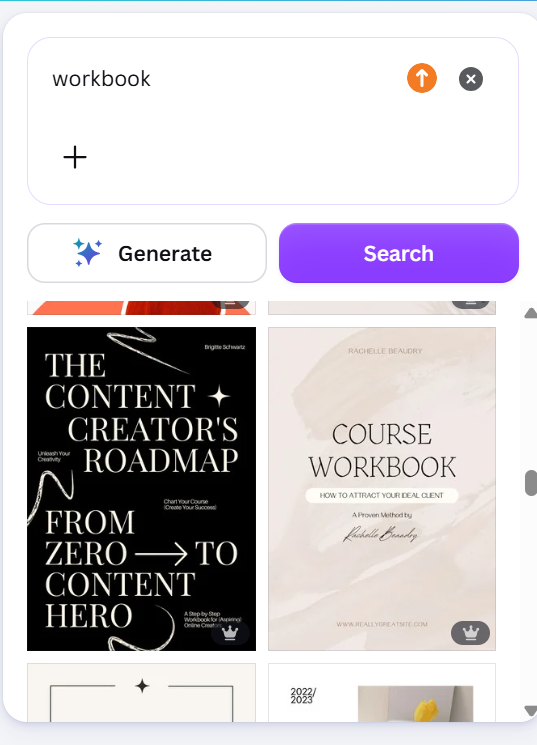
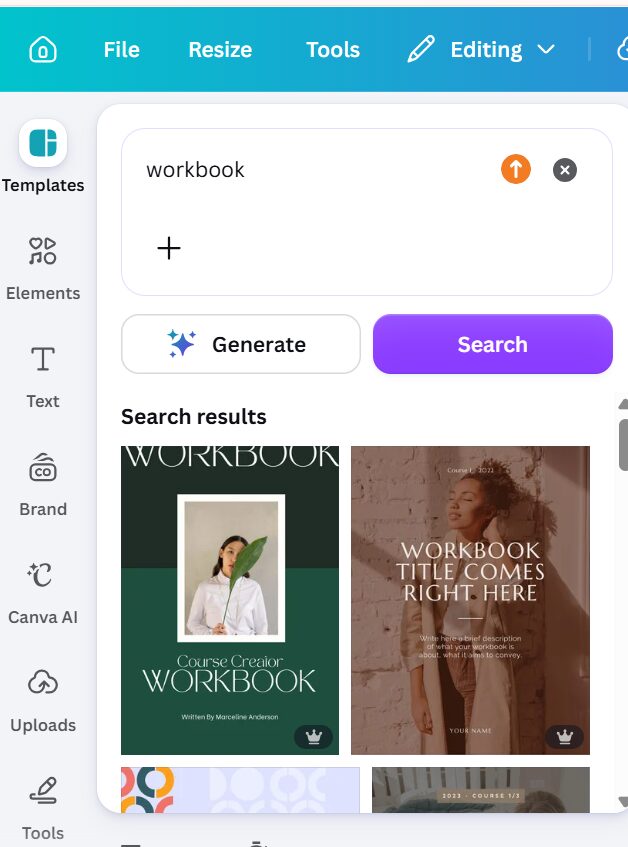
But the issue isn’t that they’re bad.
It’s that most of them are pretty basic. Plus, everyone is using the same handful of designs.
If you’re creating a quick workbook, that’s probably fine.
But if you’re building a course, coaching program, or premium digital product, your workbook is part of the experience.
If your workbook layout is already messy, making it fillable won’t fix the experience. Start with a clean, functional workbook design first, then make it interactive.
Bad workbook design sells your expertise short. It’s like serving a five-star meal on a paper plate.
The content might be incredible, but presentation still shapes the experience.
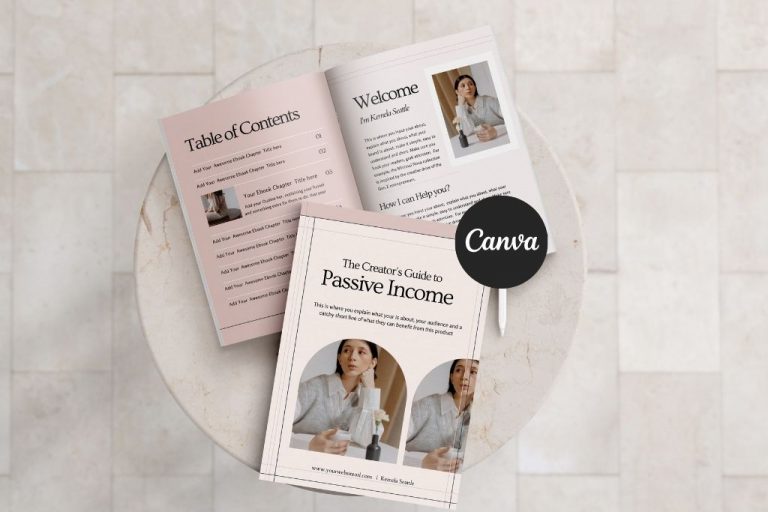
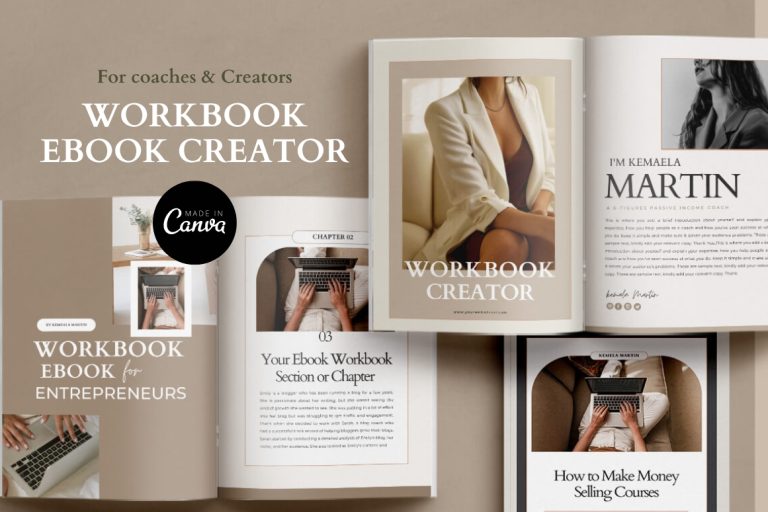
If you’d rather skip the blank page altogether, I’ve created personality-forward Canva workbook templates for coaches, creators, and digital product sellers that make your digital products look as polished as the expertise inside them.
Browse the workbook templates here→
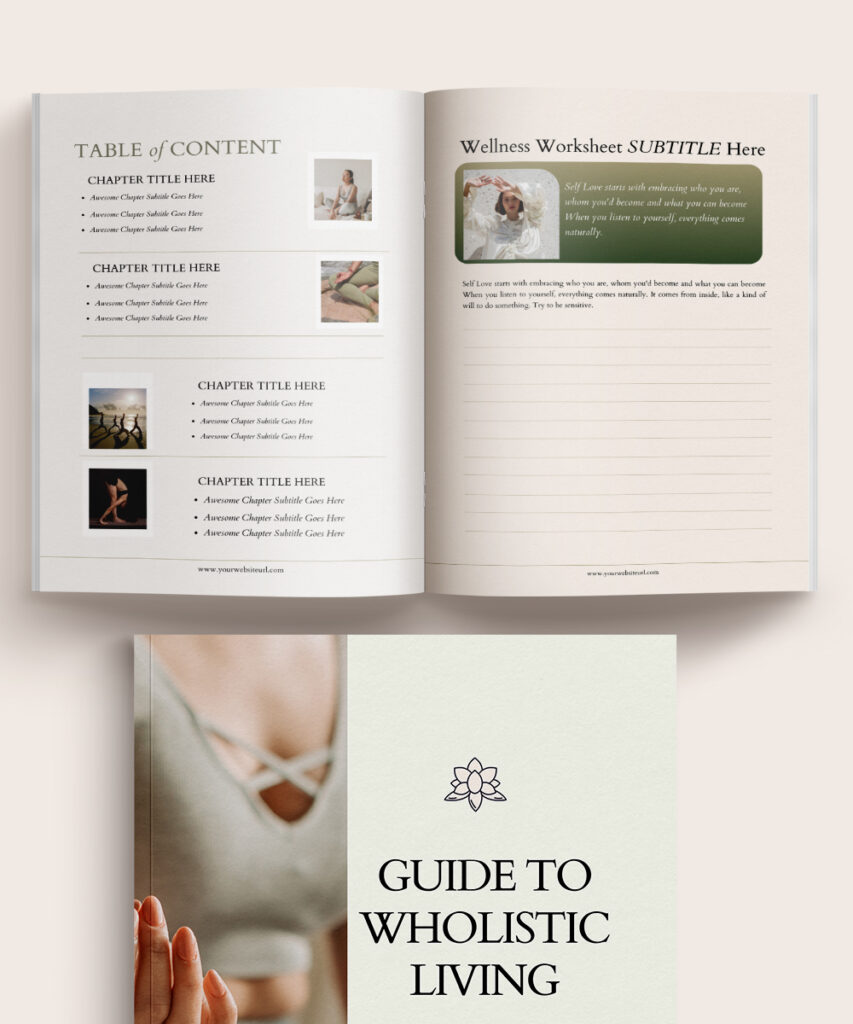
Make Your Workbook Look as Good as Your Expertise!
My Canva workbook templates were created for coaches, creators, bloggers, and digital product sellers who want pro-grade workbooks without wasting time piecing them together. Skip:
- Guessing how much space people actually need to write.
- Trying to make a generic Canva template look unique.
- Spending hours fixing layouts that never quite feel right.
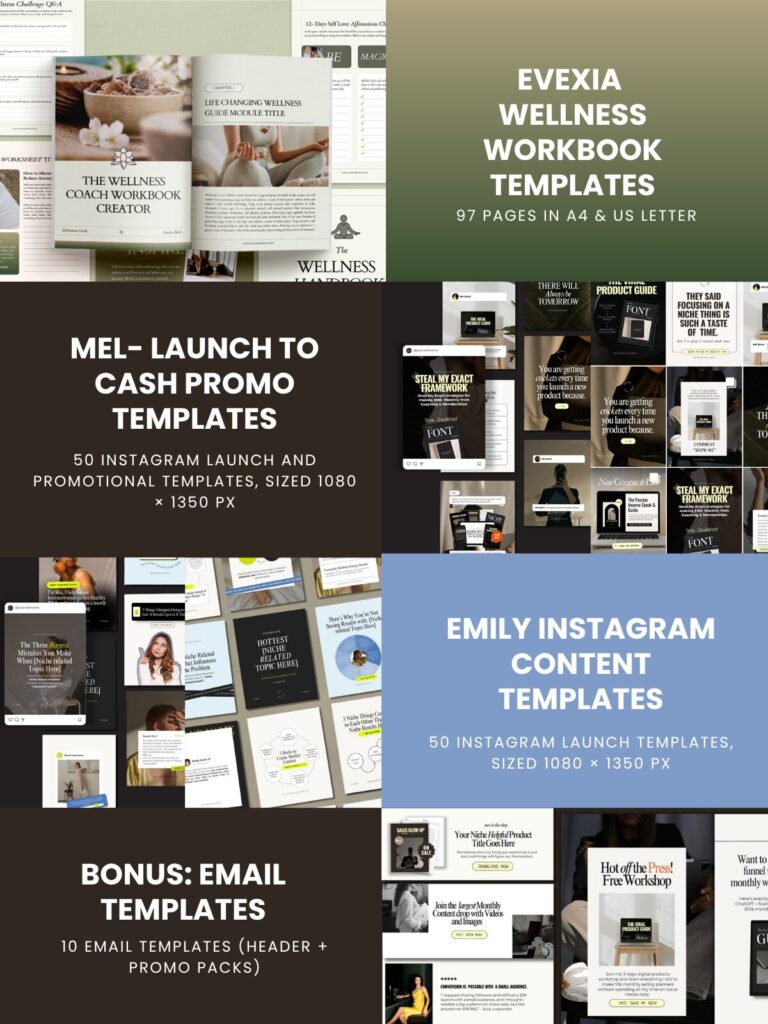
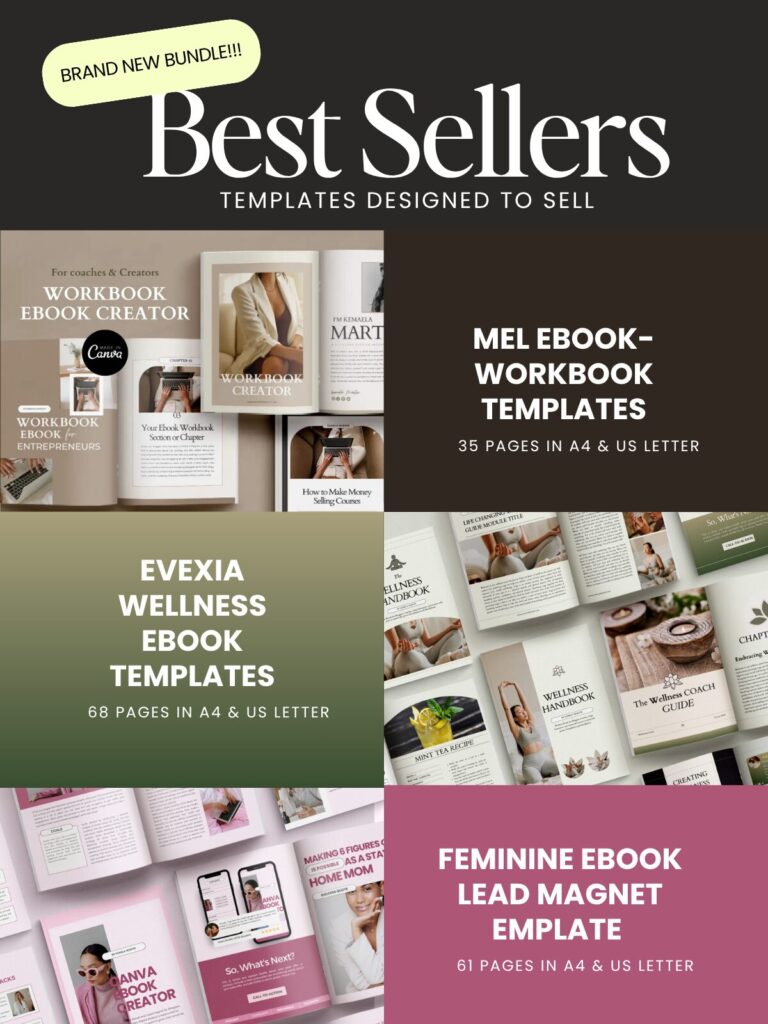
Or, why stop at one workbook? Create your workbook now, your next ebook or lead magnet later, and have the templates to promote them too. Get $252 worth of templates for $97 →
Want to go through the hassle of creating your own workbook from scratch instead? I already have a complete step-by-step guide for creating a workbook in Canva.
2. Create Fill-In Boxes and Interactive Spaces
Now it’s time to think about where people will actually interact with your workbook.
This means adding areas for reflection, written responses, checklists, goal setting, journaling prompts, action steps, or anything else that requires user input.
You can create these spaces using simple shapes like rectangles, lines, circles, tables, or text areas.
Some people prefer visible boxes with borders, while others prefer a cleaner, more minimal look. It really comes down to your design style.
If you’re using a workbook template like my Mel Workbook Template, most of this work is already done for you.
Simply choose the pages you want to include, swap out the placeholder content, and add your own prompts and exercises.
But if you’re building your workbook from scratch, spend a little extra time planning these interactive areas.
Think about where readers will type. Leave enough room for longer responses. And add breathing room between exercises.
The biggest mistake I see people make at this stage is not leaving enough room for responses.
And remember that many people will complete your workbook on a phone or tablet, not on a computer.
So, you want to plan this section out properly. You can skip this step using my well-planned premade workbook Canva templates created with user experience in mind to help you create workbooks that users won’t stop raving about how pretty and functional they are.
3. Add Hyperlink And Navigation
Unlike a regular printable workbook, a fillable workbook PDF gives you a little more room to be extra.
Now, this is probably one of my favorite parts of creating digital workbooks
You can link to blog posts, videos, bonus resources, affiliate products, your shop, and pretty much anything else that would help your users. Plus, it could make you some quick bucks.
Think of it as a mini sales page hidden inside your workbook.
Assuming your freebie is a workbook, someone downloads and enjoys it, you can naturally point them to your paid offer, course, membership, or whatever makes sense as the next step.
It’s a win-win.
And apart from selling things, hyperlinks make the workbook easier to use.
This is especially fun for digital planners and journals.
You can create clickable tabs, navigation menus, and even link every page back to your table of contents so people aren’t endlessly scrolling trying to find where they left off.
Once you start adding hyperlinks, your workbook starts feeling less like a PDF and more like an actual digital product.
Interesting right? Well, I wrote a whole post showing you how to hyperlink in Canva in 3 simple steps.
4. Save And Export Your Workbook As A PDF
Once you’ve added all your workbook pages, prompts, links, and interactive elements, it’s time to export the file.
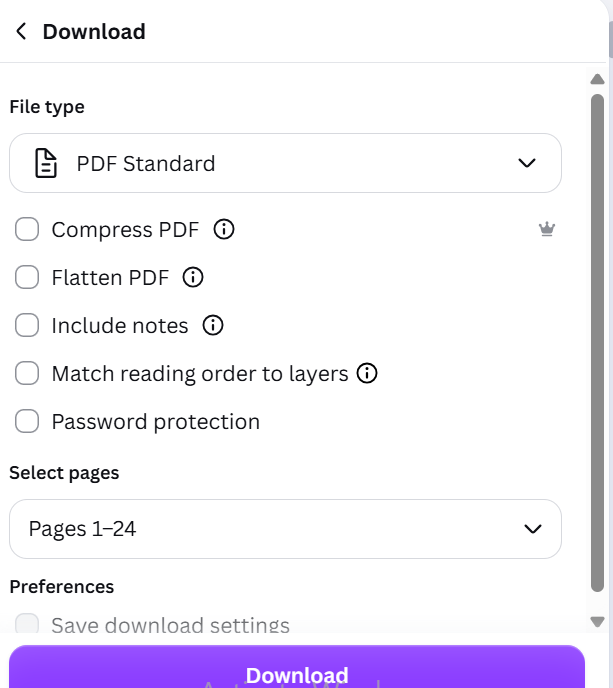
In Canva, click Share → Download.
You’ll see several file options, but for a digitally fillable workbook, choose PDF Standard.
This format keeps your hyperlinks intact.
If you export as PDF Print, Canva strips away your hyperlinks. The same thing happens with flattened PDFs.
You’ve spent time creating navigation menus, linking to resources, or adding CTA pages; don’t accidentally undo all your hard work at the final step.
Now, if you want your workbook to be both digitally fillable and printable, I recommend exporting two versions.
The first version should be your digital workbook using the PDF Standard option.
The second should be a printable version exported as a Flattened PDF. Flattening your PDF prevents layers from shifting around and reduces printing issues.
I once had my printer call to ask if she could replace the font on a calendar I sent in for printing because she couldn’t find that font.
I went blank for a second, trying to understand why she’d need to do that. It wasn’t the first time I was printing a design I created in Canva. What changed? Well, it turned out I’d forgotten to tick the “Flatten PDF” box before exporting.
You really do not want that confusion.
And while we’re still on printing, ensure you enable print bleeds in Canva. Also, avoid placing important elements directly on the bleed line. Either stop before it or extend beyond it.
Trust me on this one.
Take note of this unless you want to be swamped with complaints.
5. Use DocFly or PDF Escape to Create Fillable Fields
This is the stage where you turn your workbook from a regular PDF into a fillable one.
I originally planned to use PDF Escape for this tutorial. It was a tool I preferred and used in the past. However, it seems it had gotten an upgrade (downgrade).
Anyways, I went down the rabbit hole in search of a new tool, at least to test which would be better.
I ended up testing both PDF Escape and DOCFLY side by side.
And honestly, DOCFLY is better. At least when I compared what’s available on PDF Escape’s free version.
PDF Escape’s free online version allows files up to 10MB and fewer than 100 pages, which is generous enough for most workbooks. It also allows you to reorder pages and add fillable fields.
Setting the font size for the fillable fields takes a longer route and involves confusing steps. This used to be easy peasy.
I could have sworn older versions were much better, but unless I completely missed something, whatever PDF Escape gives you is what you’re stuck with.
On the other hand, DOCFLY isn’t perfect either.
The free account is limited to 3 uses per month, with a maximum file upload size of 20 MB and a fairly small font selection.
But I found the interface much easier to understand and beginner-friendly.
You can adjust font colors, change font size, field colors, and have more control over how the workbook looks when someone starts typing into it.
Another thing I liked about DOCFLY was that once I sized a textbox, the next one automatically took the same dimensions.
So instead of resizing text boxes one by one, I could simply drag them into place and keep going.
This means so much when you are working on a digital workbook or journal with hundreds of fillable fields.
Neither tool allows copying formatting from one field to another. Which, unfortunately, after formatting your twentieth text field, you’ll probably find yourself wishing for a paint roller tool.
Both PDF Escape and DOCFLY add a light tint to fillable fields. Unless you nitpick aesthetics like me, I think it’s an inconsequential tradeoff.
I recorded a whole video showing how to use both Docfly and PDF Escape to make your digital workbook interactive.
Here Are The Walkthrough Video Guides To Make an Interactive Workbook in DocFly
How to Create Interactive PDF in DocFly – Watch Video
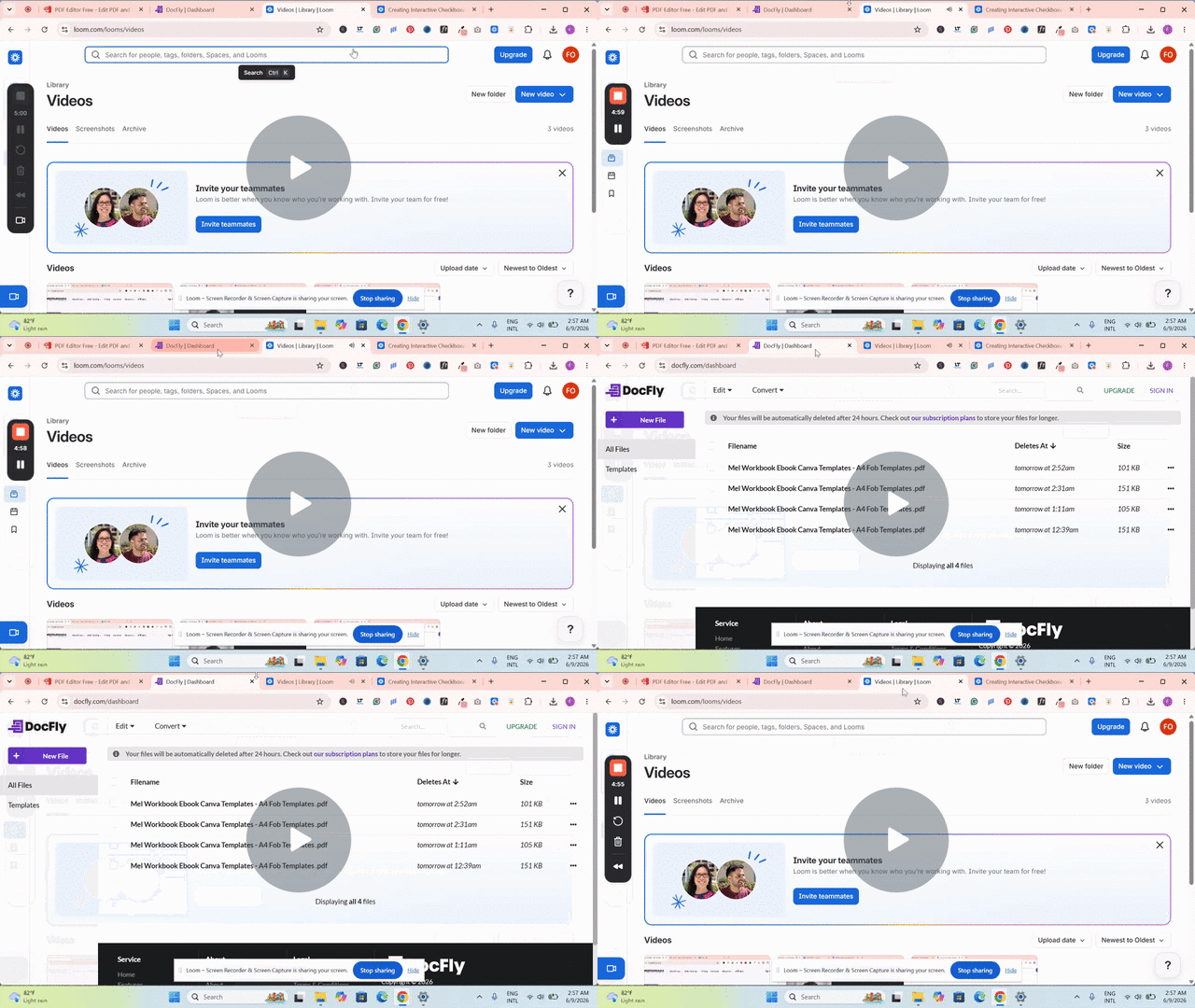
Create Interactive PDF in Docfly Pt2 – Watch Video
Walkthrough Video Guide for Making an Interactive PDF in PDF Escape
6. Test Your Workbook
Your digital workbook is ready.
Before packaging, whether as digital products or freebies, you want to test your workbook on different devices. Do not skip this step. Test your workbook on mobile and desktop devices.
Complete a sample page; check fields and interactive areas to ensure checkboxes are functioning properly. Also, check your hyperlinks.
Avoid making mistakes that leave you apologizing or fixing a bazillion customer complaints.
Tips for Creating Workbooks People Actually Complete
From my experience, both as a creator selling workbooks and journals and as an end user. People abandon your workbooks when they’re difficult to use and clearly don’t move them toward the transformation you promised. You want five-star reviews? Here are tips for making digital workbooks in Canva that people would actually use.
1. Make Instructions Obvious
I once had a customer tell me she wanted to be “literally fed” after going through one of the journals I had in my shop.
As absurd as that sounds, she was right. The instructions weren’t clear enough.
Perhaps because during the product creation stage, I had optimized for fewer pages, since it was meant to be a quick-win journal. That came at the expense of longer explanations.
So I took that feedback, updated the product, and it’s been a bestseller ever since.
Now, you don’t have to spoon-feed your readers.
But you do want your instructions to be as clear as day.
So they never have to go through your workbook and think: “Huh… so what now?” This is also one of the biggest mistakes people make when creating workbooks.
2. Don’t Overcrowd Pages
The beauty of a functional, pro-grade workbook is that the content is easy to digest, doesn’t create mental clutter, and everything feels breathable.
Avoid stuffing your workbook pages. Always leave room for people to think, write, and process what they’re learning.
Remember, most people will likely open your fillable workbook on their phone, tablet, or computer.
You don’t want to make it a chore that they eventually abandon.
We’ve already talked about the useless folder. Let’s not help them create another one.
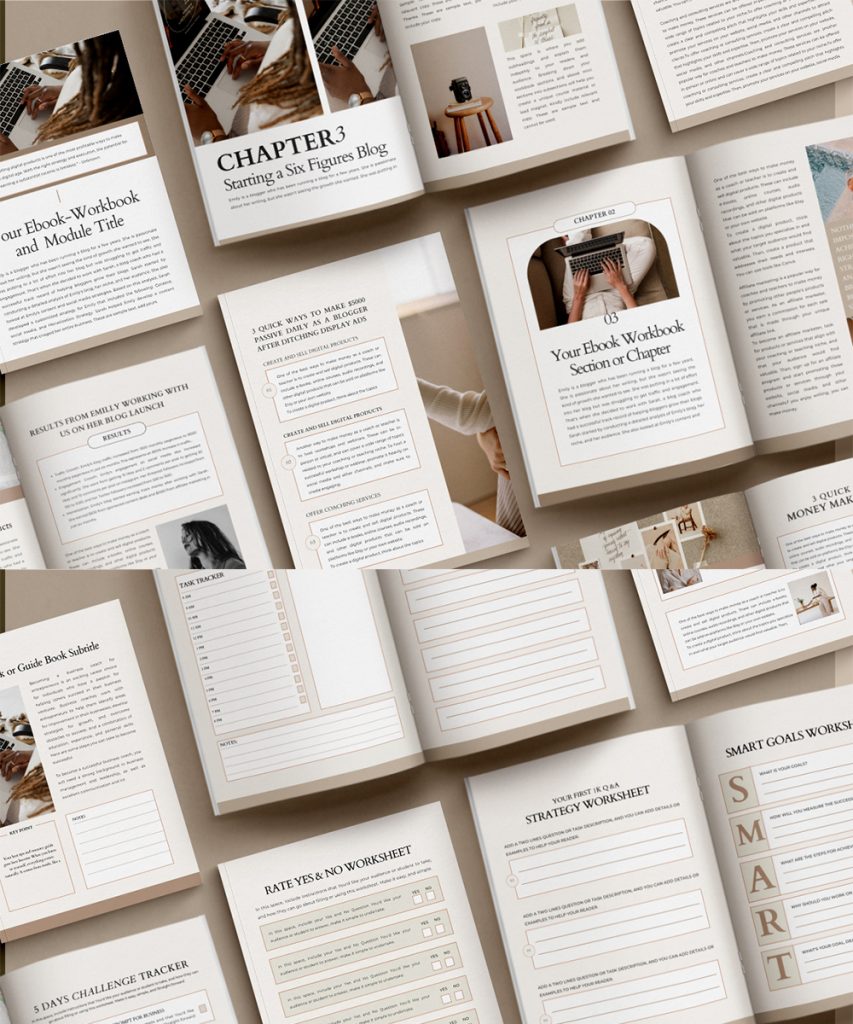
Make Your Workbook Look as Good as Your Expertise!
My Canva workbook templates were created for coaches, creators, bloggers, and digital product sellers who want pro-grade workbooks without wasting time piecing them together. Skip:
- Guessing how much space people actually need to write.
- Trying to make a generic Canva template look unique.
- Spending hours fixing layouts that never quite feel right.
3. Use Readable Fonts
Almost the same goes for fonts. Always use readable fonts.
Most beautiful cursive script fonts have no place in a workbook-style product. And if you must use them, keep them for decorative elements and headings.
Bad fonts break your designs.
And no matter how valuable your expertise is, if people can’t get through your workbook because the font is terrible, they miss out on the transformation you promised.
Additionally, your font size matters. Avoid giant font sizes that scream at users and tiny font sizes that make readers squint.
And please don’t make people zoom in every few seconds just to read your workbook on mobile.
4. Break Exercises Into Smaller Actions And Reduce Friction Wherever Possible
While you don’t want to give your users a mediocre workbook, you also don’t want to send them down the road of information overload.
As much as you want your digital product to feel like “it”, avoid crippling people with too much information.
In fact, this is a problem I see with digital product creators and coaches all the time.
They want to provide so much value and increase the perceived worth of their course, workbook, or offer that they end up overwhelming people to the point that they take no action at all.
Always break exercises into smaller bits.
When I’m creating workbooks, journals, planners, or worksheets, I often ask myself:
“How can I deliver this in a way that allows someone to achieve this result in the shortest amount of time possible?”
Because the goal isn’t to impress people with how much information you can fit into a workbook.
The goal is to help them get a result.
Treat people like people. No one is a bot.
Most people are trying to fit your workbook into busy schedules, family responsibilities, jobs, and everything else life throws at them.
The easier you make it for someone to take action, the more likely they are to actually experience the transformation you promised.
Ready to Create Your Own Interactive Workbook?
Making your workbook fillable is only part of creating a digital product people actually want to use.
It still needs to look polished, feel easy to work through, and make your expertise look as good on the page as it is in your head.
That’s where my Canva Digital Product Templates Bundle comes in.
You’ll get my hottest-selling ebook, workbook, and digital product templates with ready-made layouts for prompts, exercises, checklists, writing spaces, and all those little things that take forever to design properly.
Instead of spending weeks piecing random Canva designs together, you can customize the templates to fit your brand and have your digital product ready in a weekend.
But I also know this probably won’t be the last thing you create.
Today it’s a workbook. Next month, you might need a lead magnet to grow your email list, an ebook to sell, another freebie for your funnel, or a new digital product because you had another really good idea at 11 p.m.
And once you create it, you still have to promote it.
So I bundled the templates with 100 Instagram templates and email templates, which means you can create your product over the weekend and already have what you need to start promoting it.
Basically, I thought a few steps ahead for you.
You get $252 worth of templates for $97.
Plus, you can swap out colors and fonts and get your workbook ready in a weekend without scrolling endlessly in Canva. Because I already did the hard part. Get the $97 Canva Digital Product Templates Bundle →